
Summary
Microsoft 365 Copilot extensibility is moving beyond isolated demos. A plugin can combine a declarative agent, reusable SKILL.md instructions, remote MCP tools, and the metadata required to package the experience for Microsoft 365.
The difficult part has often been the lifecycle around the code: scaffolding, validating manifests, provisioning, evaluating quality, publishing, and monitoring adoption. Work IQ Developer Tools (WIQD) bring those steps into one developer preview experience that can be used from a terminal, Visual Studio Code, or an AI coding agent such as GitHub Copilot CLI.
Work IQ Developer Tools are in developer preview. Commands, APIs, packaging behavior, and service availability may change before general availability. Review generated files and commands, and test in a non-production tenant first.
From an empty folder to a product lifecycle
The central idea is a shared workflow for both developers and coding agents:
1
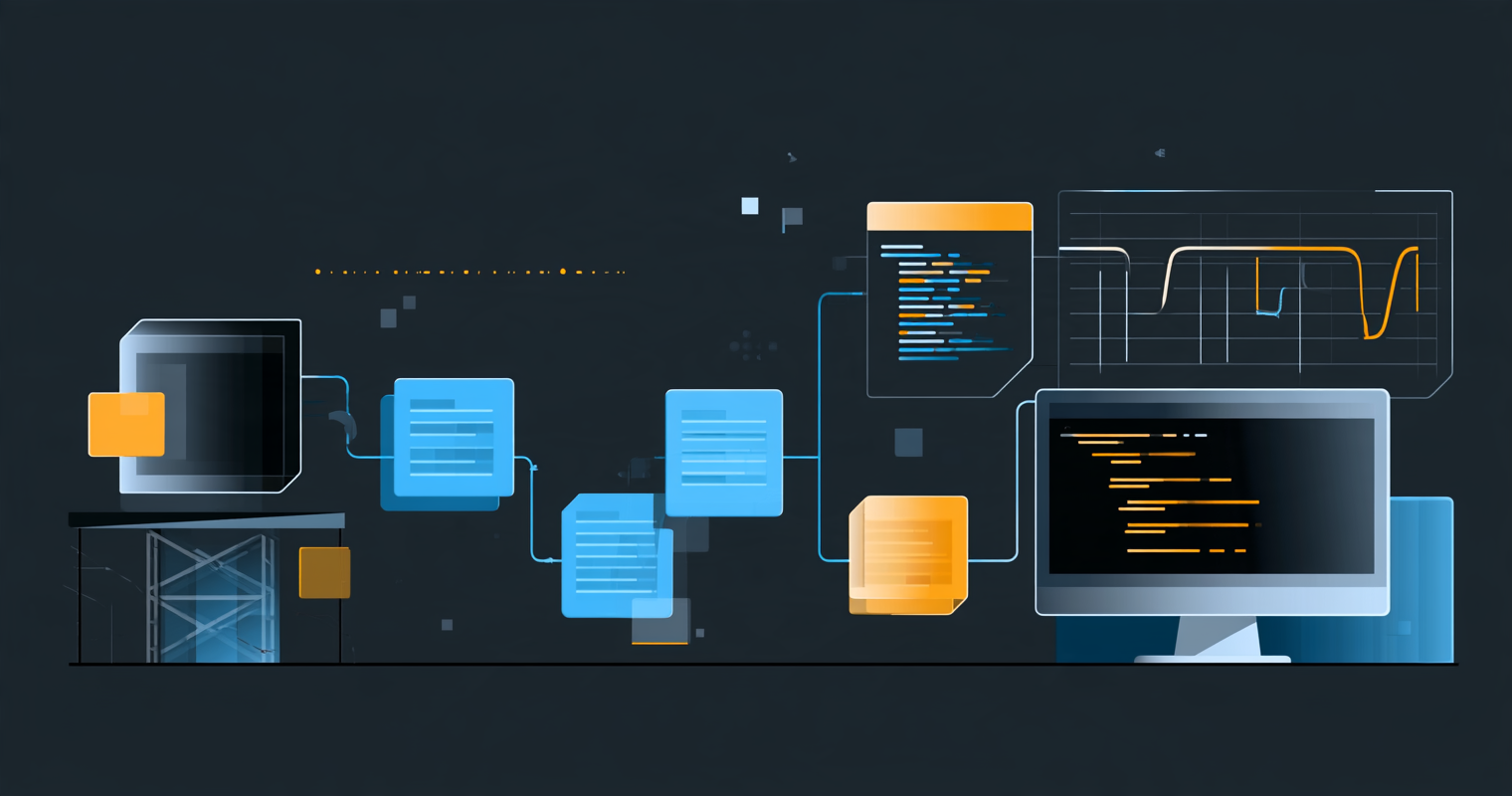
create -> configure -> validate -> provision -> package -> share -> ask -> eval -> publish -> monitor
The same lifecycle can be driven in three ways:
- Chat: describe the outcome you want and let an agent use the available skills.
- CLI: run explicit commands when you need repeatability and precision.
- CI/CD: use machine-readable output and stable exit codes in an automated pipeline.
This is useful because the development environment and the publishing workflow no longer have to be treated as separate projects.
Install the developer preview
Microsoft documents installation commands for the supported platforms:
1
2
# Windows PowerShell
iex "& { $(irm 'https://aka.ms/wiqd/install.ps1') }"
1
2
# macOS or Linux
curl -fsSL https://aka.ms/wiqd/install.sh | bash
The shell commands above come from Microsoft’s announcement. As with any remote installer, inspect the script and follow your organization’s security policy before running it. The preview also requires Node.js and a Microsoft 365 tenant with a Copilot license when you provision into Microsoft 365.
Build with an AI coding agent
WIQD includes an agent plugin so a coding agent can work with the lifecycle instead of guessing the file structure. A request can describe the complete outcome:
1
2
3
4
Create an internal support plugin. Add a declarative agent for common
knowledge-base questions, a SKILL.md skill for triaging support tickets,
and a remote MCP connector for our support platform. Validate it, generate
evaluations, and prepare it for publishing.
The agent can then select the relevant skills and commands. This does not remove the need for engineering review: permissions, instructions, tool schemas, data access, and generated evaluation cases still need to be checked by the team that owns the plugin.
What the toolchain adds
Agent plugin
The agent plugin exposes the lifecycle inside Copilot and IDE chat. This makes the developer experience conversational without making the result dependent on undocumented prompts or manual portal navigation.
Language server
The language server provides live diagnostics for plugin-related files, including declarative agent manifests, plugin manifests, and adaptive cards. The same feedback helps a developer typing a file and an AI agent generating it.
Machine-readable output
Commands support non-interactive flags, JSON output, and stable exit codes. That makes it possible to reuse the same operations locally and in CI/CD instead of maintaining separate scripts for automation.
Plugins are the reusable unit
WIQD treats the plugin as the durable product unit. A plugin can contain:
| Plugin part | Role |
|---|---|
| Declarative agent | Defines an agent experience and its instructions |
SKILL.md skills | Captures reusable task-specific guidance |
| Remote MCP connectors | Connects the agent to tools and external systems |
| Package metadata | Binds the capabilities into a Microsoft 365 app package |
This composition model helps separate a reusable capability from a particular agent. A team can publish a focused skill or connector once, then use it in multiple agent experiences while keeping validation and versioning in one place.
Evaluation belongs in the inner loop
An agent that works for one demonstration is not necessarily ready for real users. WIQD can read the plugin configuration and generate targeted evaluations as YAML. Developers can run those evaluations locally or in CI/CD and compare results across changes.
The documented CLI flow is:
1
2
wiqd agent eval init
wiqd agent eval
The goal is to catch regressions in grounding, tool selection, and response behavior before publishing. Evaluation should be treated like a test suite: keep representative prompts, review failures, and require an explicit decision when a change lowers quality.
Publishing and monitoring
The preview aims to keep the last mile in the same workflow:
- Prepare a submission for the Microsoft 365 Admin Center for line-of-business scenarios.
- Prepare a Microsoft Marketplace submission through Partner Center. Marketplace submission is documented as coming soon in the preview announcement.
- Target the intended audience before submitting.
- Reuse package metadata instead of entering the same information in several portals.
- Use
wiqd agent monitorto inspect usage, health, and adoption telemetry.
Monitoring creates a feedback loop: observe how the plugin is used, add real usage patterns to the evaluation set, improve the plugin, and publish a reviewed update.
What I would do first
I would start with a small internal plugin whose expected behavior can be described in a short evaluation set:
- Choose one narrow workflow with a clear owner and a small set of permitted tools.
- Scaffold the plugin and inspect every generated manifest.
- Add instructions and a skill that explain the workflow and its constraints.
- Validate the package and run generated evaluations.
- Provision it to a test audience rather than the whole organization.
- Review permissions, tool calls, responses, and telemetry.
- Expand the evaluation set with real but sanitized scenarios before wider release.
This approach keeps the preview’s value - one repeatable lifecycle - without treating an AI-generated package as production-ready by default.
Why this matters for Microsoft 365 developers
Work IQ Developer Tools connect three trends that are easy to discuss separately:
- Work IQ provides permission-aware Microsoft 365 context for agents.
- Plugins make skills, agents, and tools reusable.
- Evaluation and monitoring make agent development an engineering lifecycle rather than a prompt experiment.
The important shift is not simply a new CLI. It is the attempt to give humans and coding agents the same contract for building, checking, shipping, and improving Copilot extensibility. I would judge the preview by whether that contract remains repeatable in local development and CI, not by how quickly it can generate the first demo.
References
- Announcing the preview of the Work IQ Developer Tools
- Work IQ overview
- Microsoft Work IQ CLI
- Microsoft Work IQ API overview
Image Prompt
1
Flat banner illustration: a developer workflow moves through connected stages from scaffold to monitor, with a terminal and small telemetry chart. Dark charcoal background with blue and amber progress cards. Minimal technical style, no text, no logos.