
Summary
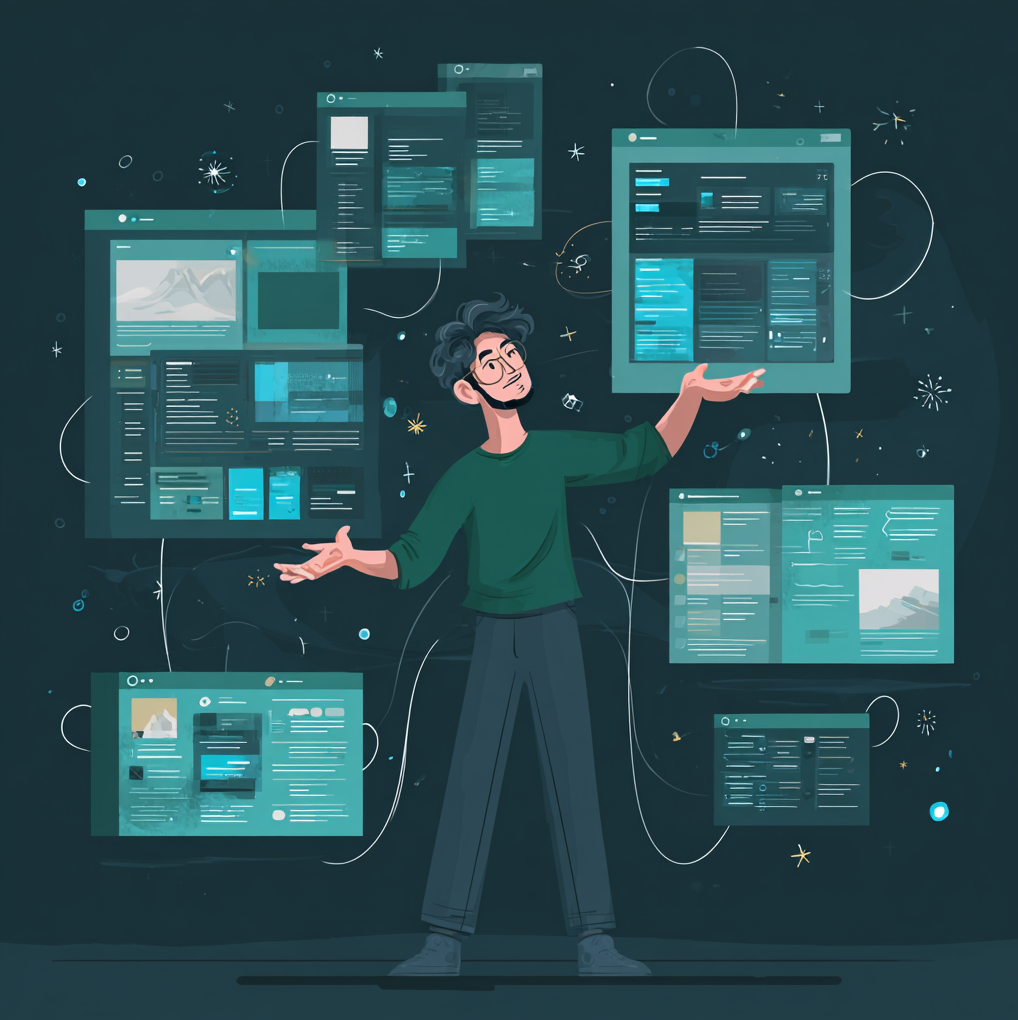
Creating a polished SharePoint intranet means more than just good content — it also means great visuals. Hero images, department banners, news thumbnails, and persona illustrations all take time to source or commission. With GPT-4o image generation, DALL-E 3 (via Bing Image Creator or the OpenAI API), and Microsoft Designer, you can generate on-brand, professional imagery in minutes using carefully crafted prompts.
This tip shares a practical prompt library for the most common SharePoint intranet image needs — copy, tweak, and use.
Key Principles for Good Intranet Image Prompts
Before the recipes, three rules that consistently improve output quality:
- Name the style — “flat illustration”, “isometric 3D”, “photorealistic”, “clean corporate photography” all produce very different results.
- Specify colour palette — anchor to your brand colours. Hex codes work in some tools; colour names work everywhere. “Dominant colour: deep blue (#003087), accent: warm white” is far better than “blue and white”.
- Define the aspect ratio / use case — “wide banner image 16:9”, “square thumbnail”, “portrait hero image”. Intranet hero sections typically want 16:9 or 21:9; news thumbnails want 4:3 or 1:1.
Prompt Recipes
1. Department Hero Banner
Use case: Full-width hero image for a department site (HR, Finance, IT, etc.)
1
2
3
4
5
Flat design illustration, wide banner 16:9 aspect ratio.
Scene: a diverse team of professionals collaborating at a modern open-plan office.
Colour palette: deep navy blue (#003087), white, and a warm amber accent.
Style: clean, minimal, no text, no logos.
Mood: collaborative, optimistic, inclusive.
Variation for IT Department:
1
2
3
4
5
Isometric 3D illustration, wide banner 16:9.
Scene: floating cloud infrastructure icons, server racks, laptop, shield, and two abstract human figures working on screens.
Colour palette: dark teal (#005F73), white, electric blue accent.
Style: modern, minimal, tech-forward.
No text. No logos.
2. News Article Thumbnail
Use case: 4:3 thumbnail for a news post or announcement.
1
2
3
4
5
Photorealistic corporate photography style, 4:3 aspect ratio.
Scene: close-up of hands typing on a laptop, with a blurred open-plan office in the background.
Lighting: bright, natural daylight coming from the left.
Colour grading: slightly warm tones, clean and professional.
No text, no faces clearly visible.
Variation for a “New Policy” announcement:
1
2
3
4
5
Flat illustration, 4:3 aspect ratio.
Scene: a single open document icon with a checkmark, surrounded by small floating icons (people, shield, calendar).
Colour palette: forest green (#2D6A4F), white, light grey background.
Style: minimal, friendly, enterprise.
No text.
3. Intranet Homepage Hero
Use case: Full-width, tall hero image for the main intranet landing page.
1
2
3
4
5
Wide cinematic illustration, 21:9 aspect ratio.
Scene: abstract landscape with interconnected nodes and lines representing a corporate network, with soft silhouettes of people in the foreground.
Colour palette: primary dark blue (#001F5B), secondary light blue (#A8D5E2), white highlights.
Style: semi-abstract, inspirational, enterprise brand feel.
No text. No logos. No identifiable people.
4. People / Persona Illustrations
Use case: Avatar or section illustration representing employee personas.
1
2
3
4
5
6
Flat vector illustration portrait, square 1:1 aspect ratio.
Subject: professional woman, mid-30s, smiling, business casual clothing.
Style: simple, geometric shapes, no photorealism.
Background: solid light grey circle.
Colour palette for clothing: white blouse, navy blazer.
No text.
Privacy tip: Use illustrated personas rather than photos to avoid GDPR/data concerns with employee images. Illustrations also scale better and stay on-brand longer.
5. Section Divider / Accent Image
Use case: Small decorative accent images for web part rows or section dividers.
1
2
3
4
Abstract geometric pattern, wide strip 8:1 aspect ratio.
Style: repeating diagonal lines with subtle gradient.
Colour: start #003087 (dark blue), fade to #A8D5E2 (light blue).
No text. No icons. Pure geometric.
6. Event / Training Banner
Use case: Banner for an event page or training announcement.
1
2
3
4
5
Flat illustration, 16:9 banner.
Scene: an auditorium or conference room with rows of abstract seated figures facing a presenter at a screen.
Colour palette: warm coral (#E76F51), off-white, dark charcoal.
Style: friendly, energetic, inclusive.
No text on the image.
Tools to Use
| Tool | Best for | Notes |
|---|---|---|
| Microsoft Designer | Quick branded images | Integrated with M365, supports brand kit |
| Bing Image Creator | Free DALL-E 3 generation | Use Edge or bing.com/images/create |
| ChatGPT (GPT-4o) | Iterative refinement | Best conversational prompt refinement |
| Adobe Firefly | Commercially safe images | All output licensed for commercial use |
| Canva AI | Templates + generation | Good for news thumbnails with text overlays |
Adding Images to SharePoint
Once generated, the fastest way to use these images:
- Save to a SharePoint image library — create a dedicated
/SiteAssets/intranet-imagesfolder per site. - Use Image web part in full-bleed layout for hero sections.
- Reference from the Hero web part — upload as custom hero image rather than using SharePoint page screenshots.
- Set alt text — always describe the image content for accessibility. SharePoint’s image web part has a dedicated alt text field.
Conclusion
A prompt library like this saves significant time when building or refreshing an intranet. The key is to keep prompts in a shared document your team can reuse — tweak the colour palette for each department, keep the style consistent, and you get a cohesive visual identity without a graphic designer for every page.