
Summary
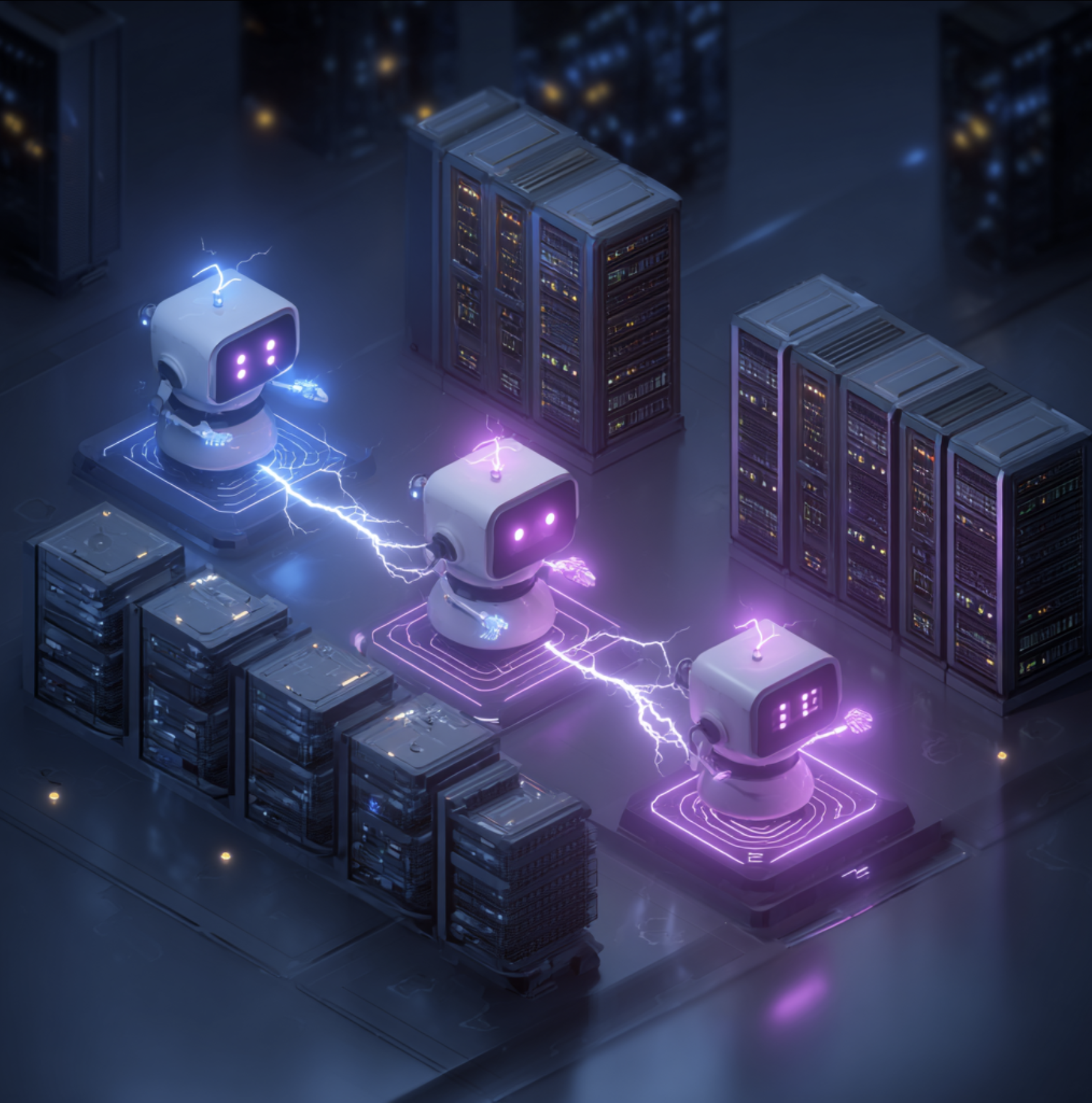
The era of single-purpose chatbots is giving way to multi-agent systems — architectures where multiple specialised AI agents collaborate to handle complex tasks that no single agent could manage alone. Microsoft’s Power Platform now supports this pattern natively through Copilot Studio agent-to-agent handoffs and Power Automate orchestration flows. This guide walks through the concepts, the architecture patterns, and a practical implementation example.
Why Multi-Agent?
A single agent has limitations:
| Limitation | Example |
|---|---|
| Context window size | Can’t hold an entire project history in one conversation |
| Skill breadth | An HR agent doesn’t know how to provision an Azure VM |
| Performance | A general-purpose agent is slower and more expensive than a focused one |
| Maintainability | One giant agent with 50 topics is hard to test and update |
Multi-agent systems address these by assigning focused responsibilities to specialised agents:
1
2
3
4
User → [Orchestrator Agent]
              ├── → [HR Agent]         (leave, benefits, policies)
              ├── → [IT Agent]         (hardware, software, access)
              └── → [Finance Agent]    (expenses, invoices, budget queries)
The orchestrator routes the user’s intent to the right specialist agent, which handles the interaction and returns a response.
The Two Patterns
Pattern 1: Copilot Studio Agent Handoff
Copilot Studio supports native agent-to-agent handoff — one agent can redirect the conversation to another agent mid-conversation.
Use when:
- The sub-agent also has its own conversation UI
- You want seamless context transfer (conversation history)
- Both agents are in Copilot Studio
Pattern 2: Power Automate Orchestration
A Power Automate flow acts as the orchestrator, calling multiple agents (or AI actions) in sequence or in parallel.
Use when:
- The orchestration is triggered by a system event (not a user conversation)
- Sub-tasks run in parallel
- You need complex conditional branching and error handling
- You’re combining AI agents with non-AI steps (send email, write to database)
Pattern 1: Agent Handoff in Copilot Studio
How It Works
Copilot Studio supports a Transfer to agent action that can point to another Copilot Studio agent:
- User starts conversation with Orchestrator Agent
- Orchestrator classifies intent → detects “IT request”
- Orchestrator triggers Transfer conversation action → points to IT Agent
- IT Agent receives the conversation with context passed from the orchestrator
- IT Agent handles the rest of the interaction
Setting It Up
In the Orchestrator Agent:
- Create a new Topic: “Route to IT”
- Add a trigger phrase: “I need IT help” / “submit IT request” / “request software”
- Add a Send a message node: “Let me connect you with the IT assistant…”
- Add a Transfer to agent action
- Set destination: your IT Agent (select from the list of agents in your environment)
- Pass context variables:
{ "user_name": "{System.User.DisplayName}", "original_query": "{Activity.Text}" }
In the IT Agent:
- Add a On conversation start trigger
- Read the passed context variables
- Use them to personalise the opening message: “Hi {user_name}, I understand you need IT help…”
Context variables passed between agents must be explicitly defined in both the sending and receiving agent. They do not transfer automatically.
Pattern 2: Power Automate Multi-Agent Orchestration
This pattern is best for document processing, approval chains, or any workflow where multiple AI capabilities need to run across a dataset.
Example: New Employee Onboarding Orchestration
1
2
3
4
5
6
7
8
9
10
11
12
13
14
15
16
17
18
19
20
Trigger: New item in "New Hires" SharePoint list
         ↓
[AI Action: Extract Role Requirements]
  → Uses GPT to read job description → output: required skills, tools, access
         ↓
[Parallel Branch A: IT Provisioning Agent]
  → Calls IT Agent flow: Create AD account, assign licences, provision laptop
         ↓
[Parallel Branch B: HR Agent]
  → Calls HR Agent flow: Send welcome pack, assign buddy, schedule orientation
         ↓
[Parallel Branch C: Training Agent]
  → Calls Training Agent flow: Recommend learning paths based on role
         ↓
[Join - wait for all branches]
         ↓
[AI Action: Summarise Onboarding Plan]
  → Uses GPT to create personalised summary for the new hire
         ↓
[Send Teams message to new hire with onboarding summary]
Implementation in Power Automate
Setting Up an AI Agent as an Action
Each specialised agent is exposed as a callable action from Power Automate. In Copilot Studio:
- Open the agent → Settings → Agent actions
- Enable Allow this agent to be called from Power Automate
- Define the input and output schema
In Power Automate, these appear as Copilot Studio connector actions.
Calling a Copilot Studio Agent from a Flow
1
2
3
4
Action: "Run a copilot" (Copilot Studio connector)
  Agent: [select your agent]
  Input message: "Process onboarding for: @{triggerOutputs()?['body/Title']}"
  Return: Agent response text
Parallel Execution
To run multiple agents simultaneously:
- Add a Control → Parallel branch action after extracting the inputs
- Put each agent call in a separate branch
- After the parallel block, add a Join to wait for all branches before continuing
Pattern 3: Autonomous Agent Loop (Advanced)
For more complex scenarios, you can build an autonomous agent loop — an agent that can decide which sub-agents to call, in what order, based on intermediate results.
This is sometimes called an agentic pattern or ReAct pattern (Reason + Act):
1
2
3
4
5
6
while task_not_complete:
    1. [Orchestrator] Reason: What is the current state? What should I do next?
    2. [Orchestrator] Act: Call appropriate sub-agent or tool
    3. Observe result
    4. Update state
    5. Check: Is the task complete?
In Power Automate + AI Foundry:
1
2
3
4
5
6
7
8
[Azure AI Foundry – Prompt flow]
  Loop: max 10 iterations
    ├── [LLM] Decide next action based on conversation history + current state
    ├── [Switch] Route to: HR Agent / IT Agent / Finance Agent / "Done"
    ├── [Call selected agent]
    └── [Append result to conversation history]
  [Exit when action = "Done"]
  [Return final summary]
Autonomous loops require careful exit conditions and iteration limits (prevent infinite loops). Always set a maximum iteration count and a fallback “escalate to human” path.
Real-World Scenario: IT Service Desk Multi-Agent
Here is a complete scenario combining both patterns:
User Journey:
- User opens Teams and messages the IT Helpdesk Orchestrator Agent
- User: “I need to request a new laptop and get access to the Salesforce CRM”
Orchestration:
1
2
3
4
5
6
7
8
9
10
11
12
13
14
15
16
17
18
19
20
[Orchestrator Agent]
  ├── Detects: hardware request → hands off to [Hardware Agent]
  │     Hardware Agent:
  │     - Collects model preference, justification
  │     - Calls Power Automate flow: creates ServiceNow ticket
  │     - Returns: "Ticket #12345 created, estimated delivery 5 business days"
  │     - Transfers back to Orchestrator with result
  │
  └── Detects: software access request → hands off to [Access Management Agent]
        Access Management Agent:
        - Identifies Salesforce as a licensed application
        - Calls Power Automate flow: submits access request to manager for approval
        - Returns: "Access request sent to your manager for approval"
        - Transfers back to Orchestrator with result

[Orchestrator Agent]
  - Combines both results
  - Responds: "I've submitted your laptop request (Ticket #12345, ~5 days) and
    sent a Salesforce access request to your manager for approval.
    Is there anything else I can help you with?"
Governance Considerations
| Topic | Recommendation |
|---|---|
| Authentication | Each agent should authenticate as the calling user, not a service account, to respect data access controls |
| Logging | Log every agent handoff and action call with user identity and timestamp |
| Rate limiting | Set token-per-minute limits on AI actions to prevent runaway cost |
| Human escalation | Every multi-agent workflow must have an “escalate to human” exit path |
| Testing | Test each agent independently before testing the orchestrated flow |
| Error handling | Each Power Automate branch should have a scope + catch block for failures |
Conclusion
Multi-agent architectures in Copilot Studio and Power Automate are no longer experimental — they are a production-ready pattern supported by the platform. Start with a simple two-agent handoff, prove the pattern works, and expand from there. The key discipline is clear agent responsibility boundaries: each agent should do one thing well, and the orchestrator should only route — not do the work itself.
References
- Copilot Studio – Agent Handoff
- Call a Copilot Studio agent from Power Automate
- Power Automate – Parallel branches
- Azure AI Foundry – Prompt flow
- Copilot Studio Agent Actions