
Overview
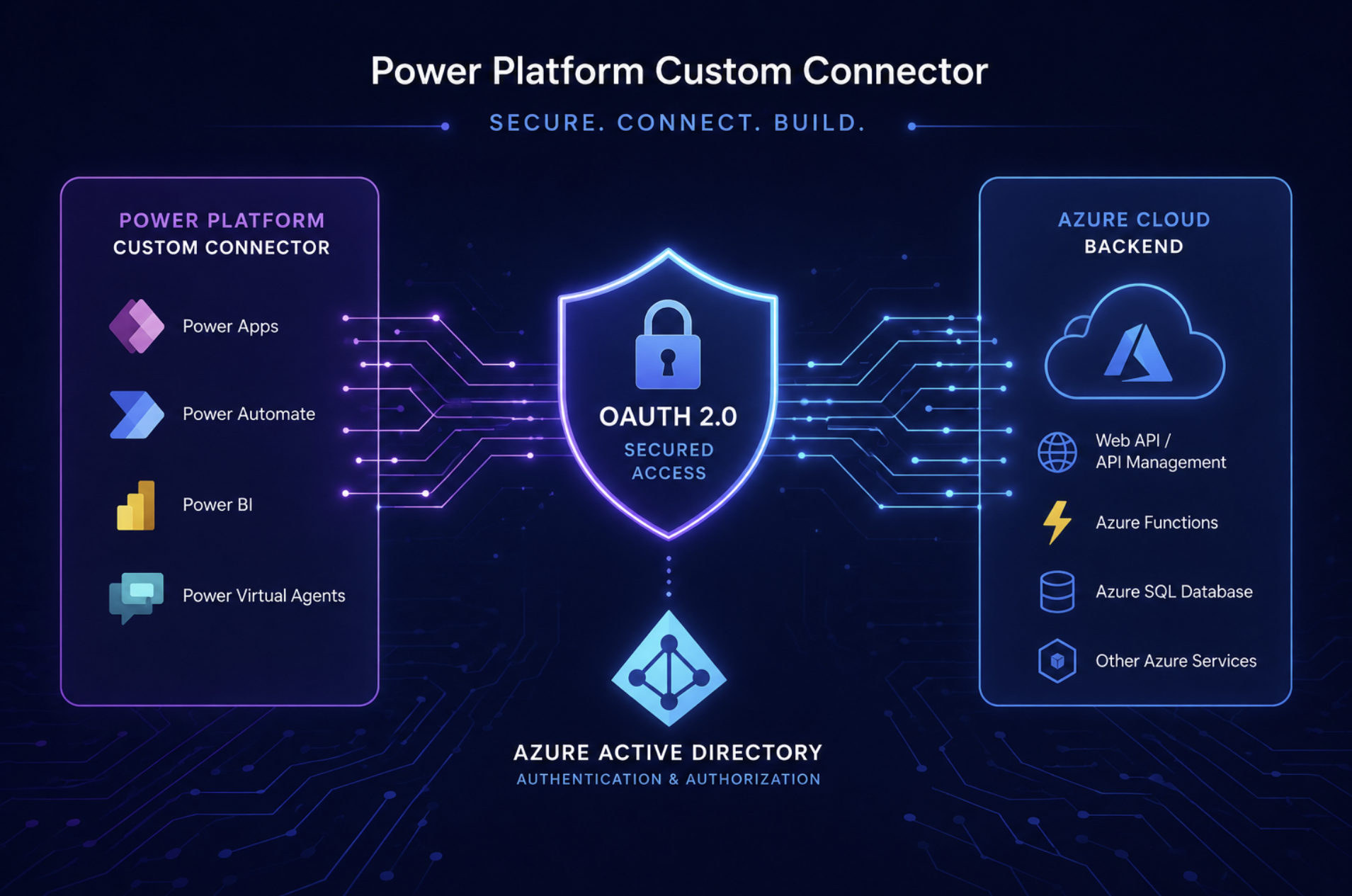
In this post I walk through setting up a Power Apps Custom Connector secured with Azure Active Directory (AAD) OAuth 2.0, backed by an Azure Function App. This is a proof of concept following the MS Learn module on configuring custom connectors with API authentication.
The end result: a Power App that calls a secured Azure Function through a custom connector, with the user’s identity flowing through via OAuth 2.0 on-behalf-of.
Architecture
1
2
3
4
5
Power App
  └── Custom Connector (Power Platform)
        └── OAuth 2.0 token (AAD)
              └── Azure Function App
                    └── AAD Auth validates token
What You Need
- Azure subscription (Contributor access)
- Azure AD tenant (App Admin or Global Admin role to register apps)
- Power Apps environment — Developer Plan is free and supports custom connectors
- Azure CLI
💡 Sign up for the free Power Apps Developer Plan at powerapps.microsoft.com/developerplan
Step 1 — Create the Azure Function App
⚠️ Use Windows + PowerShell runtime if you want to edit code in the Azure Portal browser editor. Linux and .NET isolated runtimes do not support in-portal editing.
1
2
3
4
5
6
7
8
9
10
11
12
13
14
15
16
17
18
19
# Resource group
az group create --name myapp-rg --location westeurope

# Storage account (required by Functions)
az storage account create \
  --name myappstorage \
  --resource-group myapp-rg \
  --sku Standard_LRS

# Function App — Windows + PowerShell
az functionapp create \
  --name myapp-func \
  --resource-group myapp-rg \
  --storage-account myappstorage \
  --consumption-plan-location westeurope \
  --runtime powershell \
  --runtime-version 7.4 \
  --functions-version 4 \
  --os-type Windows
Create an HTTP trigger function in the portal with Anonymous authorization level (AAD auth is handled at the app level, not the function key level):
1
2
3
4
5
6
7
8
9
10
11
12
13
14
15
16
17
using namespace System.Net

param($Request, $TriggerMetadata)

$name = $Request.Query.Name
if (-not $name) { $name = $Request.Body.Name }

$body = if ($name) {
    "Hello, $name. This HTTP triggered function executed successfully."
} else {
    "This HTTP triggered function executed successfully."
}

Push-OutputBinding -Name Response -Value ([HttpResponseContext]@{
    StatusCode = [HttpStatusCode]::OK
    Body = $body
})
Step 2 — Two AAD App Registrations
The pattern requires two separate app registrations:
| App | Purpose |
|---|---|
MyApp-FuncAPI | Represents the API — defines the OAuth scope |
MyApp-Connector | OAuth client — the connector gets tokens on behalf of the user |
Register the API App
1
2
3
4
5
6
7
az ad app create --display-name "MyApp-FuncAPI" --sign-in-audience AzureADMyOrg

# Set App ID URI
az ad app update --id <API_APP_ID> --identifier-uris "api://<API_APP_ID>"

# Create service principal (required!)
az ad sp create --id <API_APP_ID>
Add the access_as_user delegated scope via Azure Portal: App registrations → MyApp-FuncAPI → Expose an API → + Add a scope
Register the Connector App
1
2
3
4
5
6
7
8
9
10
11
12
13
az ad app create --display-name "MyApp-Connector" --sign-in-audience AzureADMyOrg

# Create client secret (copy the value — shown once only)
az ad app credential reset --id <CONNECTOR_APP_ID> --display-name "ConnectorSecret" --years 2

# Grant delegated permission to the API app
az ad app permission add \
  --id <CONNECTOR_APP_ID> \
  --api <API_APP_ID> \
  --api-permissions "<SCOPE_ID>=Scope"

# Admin consent
az ad app permission admin-consent --id <CONNECTOR_APP_ID>
Step 3 — Enable AAD Auth on the Function App
1
2
3
4
5
6
7
8
9
10
11
12
13
14
15
16
17
18
19
20
21
22
23
24
25
26
27
$funcId = az functionapp show --name myapp-func --resource-group myapp-rg --query id -o tsv

$authConfig = @{
  properties = @{
    platform = @{ enabled = $true }
    globalValidation = @{ unauthenticatedClientAction = "AllowAnonymous" }
    identityProviders = @{
      azureActiveDirectory = @{
        enabled = $true
        registration = @{
          clientId = "<API_APP_ID>"
          openIdIssuer = "https://sts.windows.net/<TENANT_ID>/v2.0"
        }
        validation = @{
          allowedAudiences = @("api://<API_APP_ID>")
        }
      }
    }
  }
} | ConvertTo-Json -Depth 10

$authConfig | Out-File "$env:TEMP\auth.json" -Encoding UTF8

az rest --method PUT `
  --uri "https://management.azure.com$funcId/config/authsettingsV2?api-version=2022-03-01" `
  --headers "Content-Type=application/json" `
  --body "@$env:TEMP\auth.json"
Why
AllowAnonymous? The connector handles OAuth token acquisition. The Function App validates the token when present but does not block calls at the platform level — this is required for the OAuth flow to work correctly.
Also add CORS for Power Platform:
1
2
3
4
5
az functionapp cors add --name myapp-func --resource-group myapp-rg \
  --allowed-origins \
    "https://global.consent.azure-apim.net" \
    "https://make.powerapps.com" \
    "https://*.azure-apim.net"
Step 4 — Create the Custom Connector in Power Apps
Go to make.powerapps.com → Custom connectors → + New → Create from blank
- General tab:
- Host:
myapp-func.azurewebsites.net - Base URL:
/
- Host:
Security tab:
Field Value Authentication OAuth 2.0 Identity Provider Azure Active Directory Client id <CONNECTOR_APP_ID>Client secret <CONNECTOR_SECRET>Tenant ID <TENANT_ID>Resource URL api://<API_APP_ID>- Definition tab → + New action → Import from sample:
- Verb:
GET - URL:
/api/hello?name=World← path only, no hostname
- Verb:
Create connector → copy the Redirect URL from Security tab
- Add redirect URL to the Connector AAD app:
1
2
3
az ad app update \
  --id <CONNECTOR_APP_ID> \
  --web-redirect-uris "<REDIRECT_URL_FROM_SECURITY_TAB>"
Step 5 — Test
In the connector → Test tab → + New connection → sign in → run SayHello with name=World.
Expected response:
1
Hello, World. This HTTP triggered function executed successfully.
Gotchas I Hit Along the Way
1. AADSTS650052 — Missing service principal
The app registration exists but the service principal (the tenant instance of the app) was not created. Fix:
1
az ad sp create --id <API_APP_ID>
2. 404 from Power Platform — Wrong URL path
The connector action URL must be path only (/api/hello). If you import from a full URL (https://func.azurewebsites.net/api/hello), the hostname gets included in the path and breaks routing. The host is already set in the General tab.
3. Auth config not applied
The az webapp auth CLI extension can hang on install. Use the authsettingsV2 REST API directly instead (as shown in Step 3 above).
4. Portal editor not available
If you create the Function App on Linux or .NET isolated runtime, the in-portal code editor is not available. Use Windows + PowerShell if you want to write functions directly in the browser.
5. JSON special characters in CLI
Passing JSON with special characters inline via --body causes “Bad Request” errors. Always write the JSON to a temp file first and reference it with --body "@file.json".
One App vs Two Apps
You can simplify by using a single AAD app for both the API and the connector:
| One App | Two Apps | |
|---|---|---|
| Setup | Simpler | Moderate |
| Secret rotation | Affects both | Connector only |
| Multiple clients | Share identity | Independent |
| Best for | Dev / PoC | Production |
With one app: use the same Client ID in the connector Security tab AND the Function App auth config. The app grants access_as_user permission to itself.
Cost
For a test/PoC setup like this, the monthly cost is essentially $0:
- Function App (Consumption): free tier covers 1M requests/month
- Storage account: ~$0.01/month (near empty)
- AAD app registrations: always free
- Power Apps Developer Plan: free
Summary
| Component | What it does |
|---|---|
| Azure Function App | API backend (Windows + PowerShell) |
| AAD App — FuncAPI | Defines the OAuth scope, validates tokens |
| AAD App — Connector | OAuth client identity for the connector |
| Power Apps Connector | Bridges Power Apps to the secured API |
| AAD Auth on Function App | Validates bearer tokens on incoming requests |
The full setup takes about 30-45 minutes. The trickiest parts are the service principal creation (easy to miss) and the URL path in the connector definition.
Full documentation and CLI scripts available in my DevGods project.